
Instagram DM automation guide
Automate comments, Stories and Instagram DMs.
Automate your Instagram to send a DM when someone asks for a link in the comments, replies to a Story or sends a keyword in a message.
CHECKLIST
Here is the checklist you asked for! Open the link and use it for your next launch.
What would you like to automate first?
Comments to DMs
Send the link to someone who asks on a post, carousel or Reel.
Use commentsStory replies
Share a lesson, discount or resource with someone who replies to a Story.
Use StoriesDM keywords
Answer requests for a catalog, menu or information in Instagram DMs.
Use keywordsDirect reception
Set up ice breakers, a welcome message and an away reply.
Welcome new conversationsThe direct answer
Instagram DM automation helps you send direct messages when your audience interacts with your profile.
- A comment can trigger a DM with a link.
- A Story reply can lead to a lesson.
- A keyword sent by DM can receive a catalog.
The best way to start is to choose what fits your audience and followers. Decide what the person will receive, then configure the trigger and the actions that deliver it.
Comments: move the request from a post to a DM
Use comment-to-DM automation when your call to action is on a post, carousel or Reel. Someone comments with the agreed keyword and receives your prepared message. It is a useful starting point for educational content, product posts and free resources.
Imagine a Reel with three tips for planning a launch. Your call to action could be: “Comment CHECKLIST and I will send the template by DM.” The message delivers the link with an Open checklist button. An optional public reply tells the person where to find it.
Choose a word that identifies the request. If one post offers a lesson and another offers a worksheet, configure each delivery on its corresponding post. The recipient should get what they just asked for.
See how comment-to-DM works, or follow the setup tutorial if your post is ready.
Stories: reply while the topic is fresh
Use Story automation when you show something and invite a reply. A teacher might share a lesson excerpt and write “Reply LESSON to watch the full version.” The reply starts delivery in the Instagram conversation.
In levios, you can configure text replies or Story reactions. For a lesson campaign, the word LESSON makes the request explicit. If you choose reactions, make your call to action match the emoji and the content you will send.
A Story like using the heart is different from a reaction sent into the conversation. Check which interaction you selected and test that same path from another account.
The DM should refer back to the Story: “Here is the editing lesson you asked for.” Before sharing the campaign, open the link on your phone and make sure it stays available for the campaign.
DM keywords: handle recurring requests
Use a DM keyword when a request can come from several places: your bio, a recommendation, a video or a previous conversation. You can say “Send me CATALOG by DM” and prepare a reply with the collection link.
This works well for catalogs, menus, service lists and registration pages. The keyword identifies the right reply even when the person did not come from a specific post.
Choose words tied to the request, such as CATALOG, MENU or LESSON. General words like “hi” or “yes” can appear in conversations about something else. Add the variations you want to recognize and check the condition when you test.
If someone asks an individual question after receiving the link, continue the conversation on Instagram. The prepared reply handles the repeated request; you can take it from there.
Direct reception: help people who have not made a specific request
When someone reaches your profile without a campaign keyword, levios Direct reception can guide the first contact. It includes three features:
- Ice breakers: question shortcuts shown before the first message. For example, “How does your coaching work?” or “Where can I see your products?”.
- Welcome message: greet someone who sends an ordinary DM and point them toward the next step.
- Away message: reply outside your working hours, using the days and time zone you configure.
Reception complements your campaigns. A specific reply, such as a lesson requested through a keyword, takes priority over a general greeting. Someone who made a request gets a response about that topic.
The Instagram automatic messages guide walks through all three settings with real screenshots from the app.
From sharing a link to collecting a lead
If your goal is to stay in touch beyond Instagram, you can ask for an email or phone number before sharing the resource. Explain why you need it: “What is your email so you can receive the next lessons in this series?” Once the person completes the step, deliver what you promised.
A checklist campaign might end with the link itself. Registration for a lesson may justify collecting an email. Choose the steps based on how you intend to follow up; each question adds an action before delivery.
You can also include a follow request and use tags to identify people who asked for a lesson, checklist or template. In the contacts area, tags help you filter and export a selection. Collecting a phone number does not, by itself, set up a WhatsApp campaign.
For examples of this sequence, see how to deliver a free resource by Instagram DM.
How to choose an Instagram DM automation tool
First, confirm that the tool uses the official Instagram API. Before comparing prices or features, check how it connects to your profile. This helps you avoid the risks of unauthorized access methods.
Look for a connection through the official Instagram or Meta authorization screen, showing the permissions you grant. Do not give the provider your password directly or share browser cookies or session data.
levios uses the official Instagram API and connects your account through the platform’s authorization flow. Meta’s messaging rules still apply, including the conditions for sending messages and continuing a conversation.
Next, check whether the tool supports the trigger, provides a conversation preview and offers the steps your campaign needs, such as email collection or a link button.
Also check how pricing grows: by contact, message, Instagram account or credits. Compare the plan that fits your use case and consider how many profiles you need to connect. The levios pricing page shows the current offer, and the alternatives pages compare individual tools.
To evaluate setup, use a concrete case: “When someone comments CHECKLIST on this Reel, send this link.” Go through the editor and check whether you can understand what will be sent before you activate it.
How to keep the conversation useful
Make the call to action, the message and the button destination promise the same thing. If your post offers an ebook, the first resource should be that ebook. If there is a step before delivery, such as providing an email, explain it in the conversation.
Messages remain subject to Instagram rules and its messaging window. A comment request does not authorize an endless sequence: configure the interaction required to continue. Opening a link is not the same as replying in the conversation.
levios connects through Instagram authorization for a professional account. Meta’s messaging documentation describes that context and the message requests folder, where a new conversation may appear.
During your first test, follow the whole path: make the request, find the DM, complete the steps and open the content. Afterward, review the history and sent DMs. To evaluate registrations or sales, also check the results at the link destination.
Your first automation
Set up your first automation in levios.
Start with one small campaign. In the editor, choose what the person does and what they receive next, with a conversation preview alongside your settings.
Before you begin
- A professional Instagram account, either Creator or Business, connected to levios.
- A goal for the conversation and a link to the resource, product or page you want to share.
- Another Instagram account to test the experience of someone making the request.
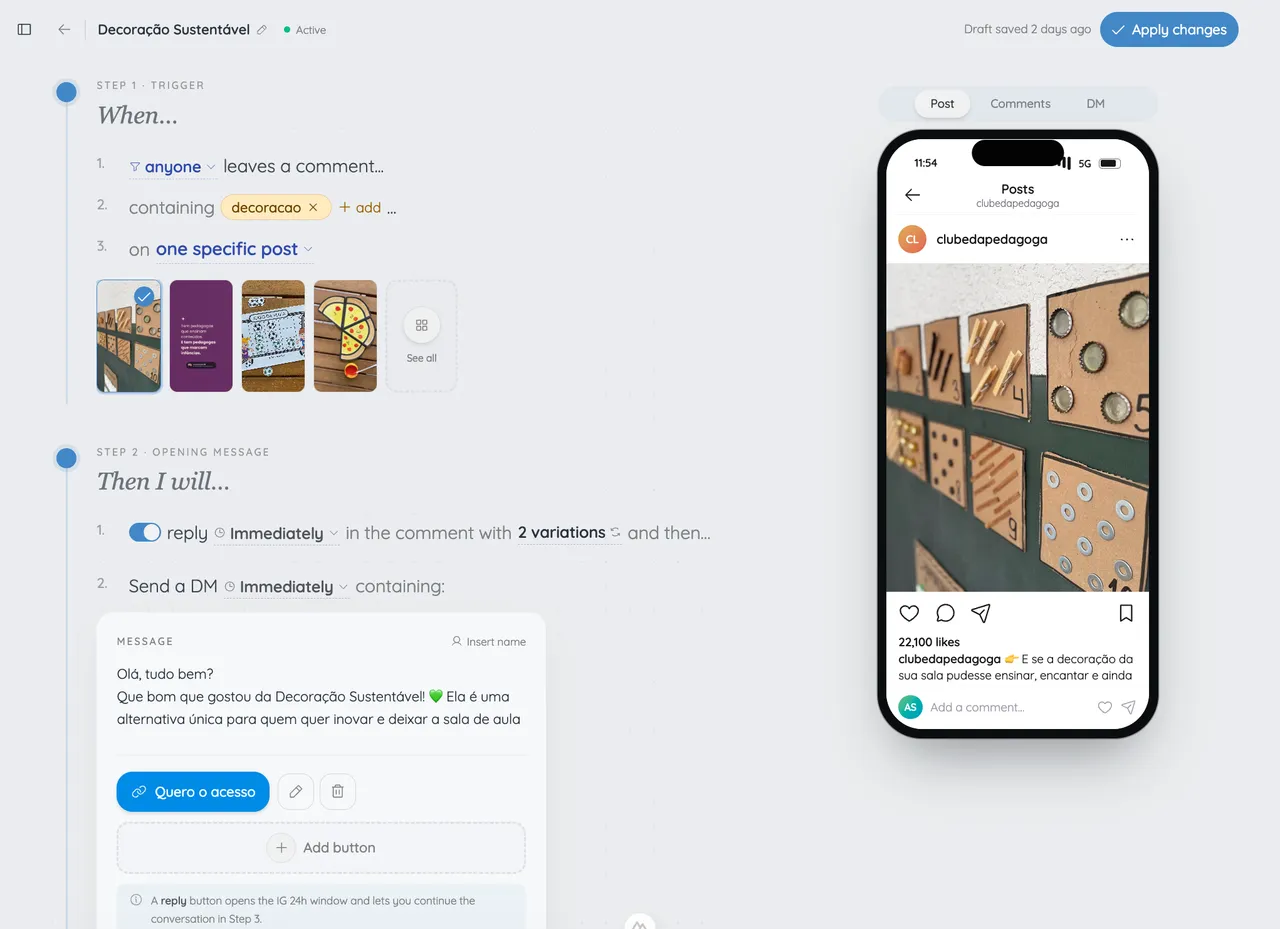
The real editor in English: a comment-to-DM automation with its trigger, message and conversation preview.
Choose one request to automate
Start with something you already send often: a checklist, a lesson or a catalog. Decide whether the request will come from a comment, a Story reply or a keyword in a DM.
Connect your account and set the trigger
Authorize the Instagram connection in levios. Create the automation and select the post, Story or DM keyword. Ask your audience to use the same word you configure in the editor.
Prepare the reply and the link
Write the message, add the link and give its button a clear name. If you ask for an email, phone number or follow first, explain the step and finish by sharing the promised content.
Review the preview and test on Instagram
Check the conversation in the phone preview. Activate the automation and make the request from another account. Check the DM, message requests and link; also test an interaction that should not trigger a reply.
Messages for your first campaign.
Choose the example that fits your content. Replace the fields in brackets and configure the same keyword you ask your audience to use.
If something does not work
- Someone made the request but did not receive a reply.
- Check that the automation is active, the post or Story matches your selection and the interaction meets the configured keyword or reaction condition. Review the automation history and test again from another account.
- Someone liked the Story and nothing happened.
- Tapping the heart is different from sending a reply or reaction into the conversation. Ask the person to reply with a word or use the reaction that matches your chosen trigger.
- The link did not arrive after the email or follow request.
- Check that the person completed the requested step and that the delivery message is configured to follow it. Test email and phone collection with a valid response.
- The reply does not match the campaign.
- Review other automations using the same keyword or post. Use specific words for different resources and check your Direct reception settings too.
Sources and review dates
Questions about Instagram automation
Which automation should I start with?
Do I need a professional Instagram account?
Does the automation answer any question with AI?
Can I ask for an email, phone number or follow before sending a resource?
Can I automatically send PDFs, ebooks and videos?
Can I start for free?
Pick a request. Have the reply ready.
Prepare your message once and let levios send the link when someone asks in a comment, a Story reply or a DM.
Start FreeNo credit card required.