
An Instagram comment-to-DM guide
How to set up Instagram comment-to-DM
Turn “I want it” in your comments into a conversation in DMs. Follow the steps to choose a post, write your reply and send your link automatically.
GUIDE
Here is the guide you requested: [guide link].
Prepare your first automation.
The direct answer
Connect your professional Instagram account to levios, create a comment automation and select a post. Add a keyword, write your message with a link and review the preview. Activate it and test from another account before promoting your call to action.
Prepare the call to action in your post
First, choose what to deliver: a checklist, lesson, ebook or coupon. Open the link on your phone and check that people can access the content.
Connect the promise and the action in your caption: “Comment GUIDE and get the checklist in your DMs.” Then use GUIDE as the automation keyword. The comment request and the message they receive should feel like the same conversation.
Write the message you would want to receive
Start with the request: “Here is the checklist you asked for!” Add the link and name the button after its destination, such as Open checklist. Avoid a long greeting before delivery.
If you choose an opening message before the resource, explain how to continue. For a sequence with email capture, phone capture or a follow request, show what is needed and finish with access to the promised content.
Check the experience of someone commenting
After activating, use another account to comment the keyword on your selected post. Open DMs and message requests, tap the button and check its destination. Also leave a comment without the keyword to check your configured condition.
If something fails, use the troubleshooting checks below, adjust the automation and test with a new comment. Once delivery works, invite your audience through the caption, your stories or the video itself.
To choose between comments, Stories and DM keywords, read the Instagram automation guide.
Comment-to-DM
Set up your automation in levios.
With your post and link ready, choose the trigger, write the reply and follow the result in the phone preview.
Before you begin
- An Instagram professional account, Creator or Business, connected to levios.
- A published post, carousel or Reel and the link you want to deliver.
- Another Instagram account to check the experience of someone commenting.
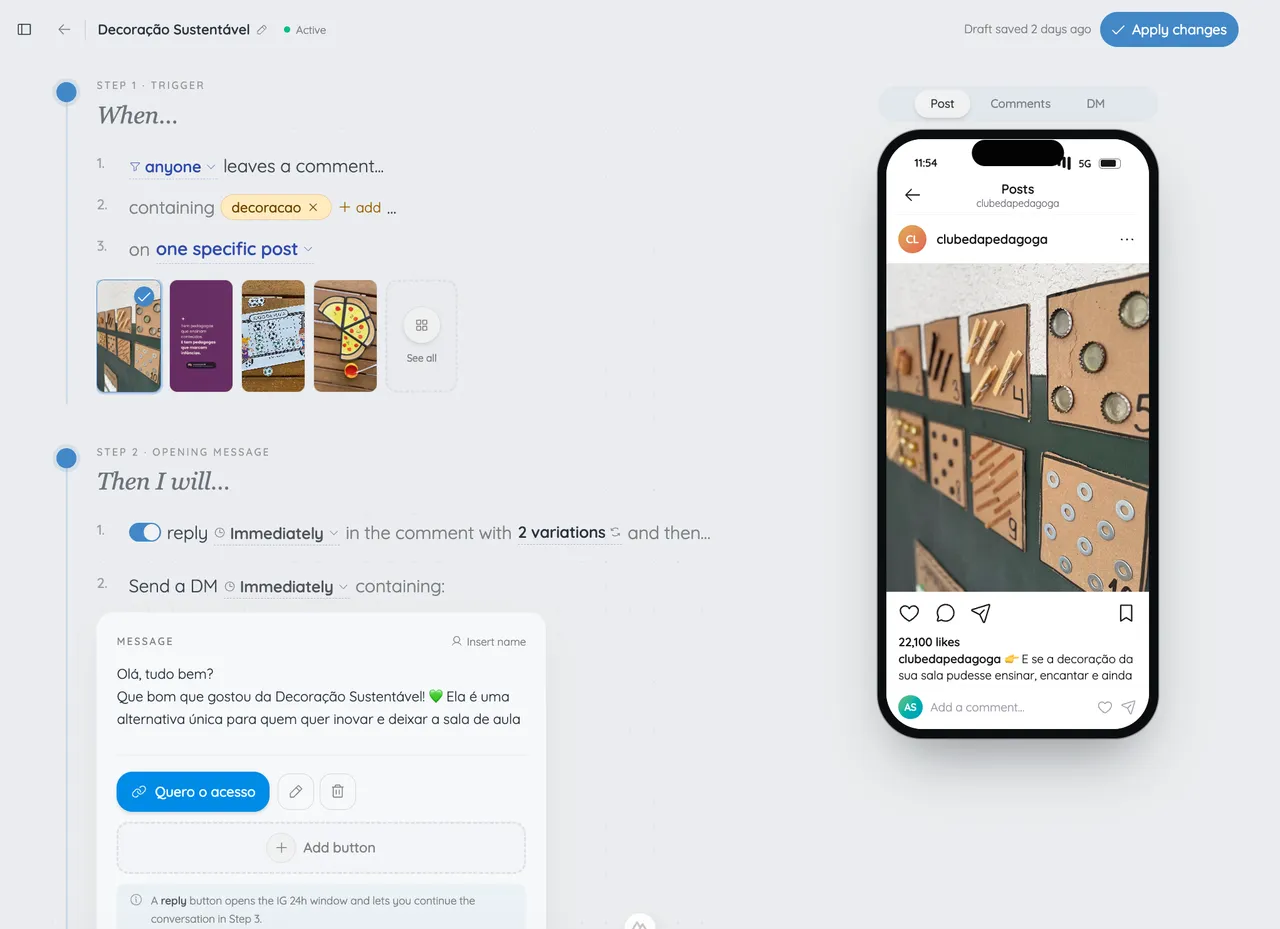
The levios editor in English: trigger, message and conversation preview.
Connect your Instagram
Create your levios account and authorize the connection through Instagram. Select the professional profile that publishes your content and grant the requested access to comments and messages.
Choose the post and keyword
Create a comment automation. Select the post, carousel or Reel and add the word your audience will comment, such as GUIDE. Use the same keyword in your caption.
Write the DM and add the link
Name what the person is receiving and include its link, preferably using a button named after the resource. If you use an opening message, explain how to continue. An optional public reply can tell them to check their DMs.
Review the preview and activate
Review your messages in the phone preview, check the button destination and activate the automation. From another account, leave a new comment with the keyword and open the DM. After testing, promote the call to action in your post.
A sequence to adapt to your post.
In this example, someone requests a checklist. Copy the messages and replace the link with your resource.
If something does not work
- The Instagram account is not available to connect.
- Confirm that it is a professional Business or Creator account, that the current Instagram user can authorize it, and that the requested permissions were accepted.
- A test comment does not match.
- Check the selected post, activation state, exact trigger spelling, account connection, and whether the comment is eligible; then retry with a new comment.
- The first DM is not visible.
- Check the recipient's message requests, the automation event status, the account permissions, and whether another active automation responded to the same comment.
- A follow-up message is not sent.
- Confirm that the recipient replied to the first private message and that the follow-up remains within Meta's applicable messaging window.
Sources and review dates
Questions about setting up comment-to-DM
Does it work with posts, carousels and Reels?
Do I need to reply to each comment manually?
Can I send a PDF, a lesson or a coupon?
Do I need to ask for a reply before delivering the link?
Can I ask for an email or a follow before delivery?
Does the preview send real messages?
Start turning comments into conversations.
Choose your post, prepare your message and let levios send the link in DMs.
Start FreeNo credit card required.